 MENU
MENU



Installation:
Download:
You have been set up with a Cisco Jabber softphone client. This will not work over a remote desktop session, please install directly on the PC/laptop that you will be using it on.
Please be aware that calls to 911 (dial 9-911) from this application will use the MRU campus address. If you can't speak (i.e. choking) emergency services will go to the campus to look for you.
Use your regular mtroyal credentials to access the download with one of the following links:
- Windows - https://www.mtroyal.ca/documents/phone-download/CiscoJabberWindows.msi
- Mac - https://www.mtroyal.ca/documents/phone-download/CiscoJabberMac.pkg\
Requirements:
An internet connection, Global Protect MRU VPN active (off campus only), microphone, speakers/headphones, an employee mtroyal.ca account (no students), and local admin rights to install programs on your PC/laptop.
Windows:
- Windows 10
- 2GB RAM
- 300MB disk space for install
- AMD Mobile Sempron Processor 3600+ 2 GHz
- Intel Core 2 Duo Processor T7400 @ 2.16 GHz
Mac:
- Apple OS X High Sierra 10.13 (or later)
- 2GB RAM
- 300MB disk space for install
- Intel Core 2 Duo processor
Not compatible with Chromebooks.
The install should be pretty straightforward, when logging into the application you need to use your standard mtroyal.ca credentials.
Setup:
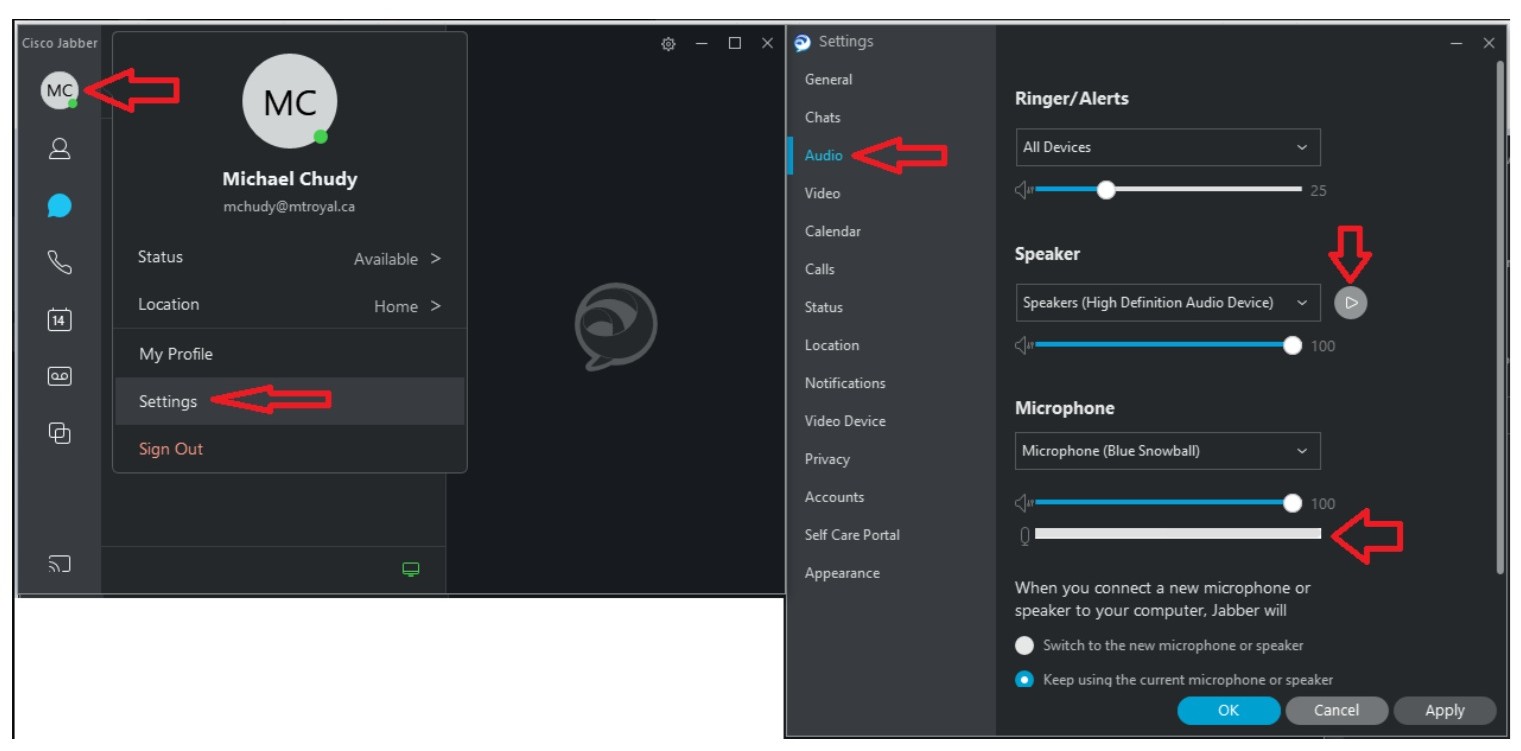
First go into Settings --> Audio to make sure the right devices are in use and test them out before trying a call.
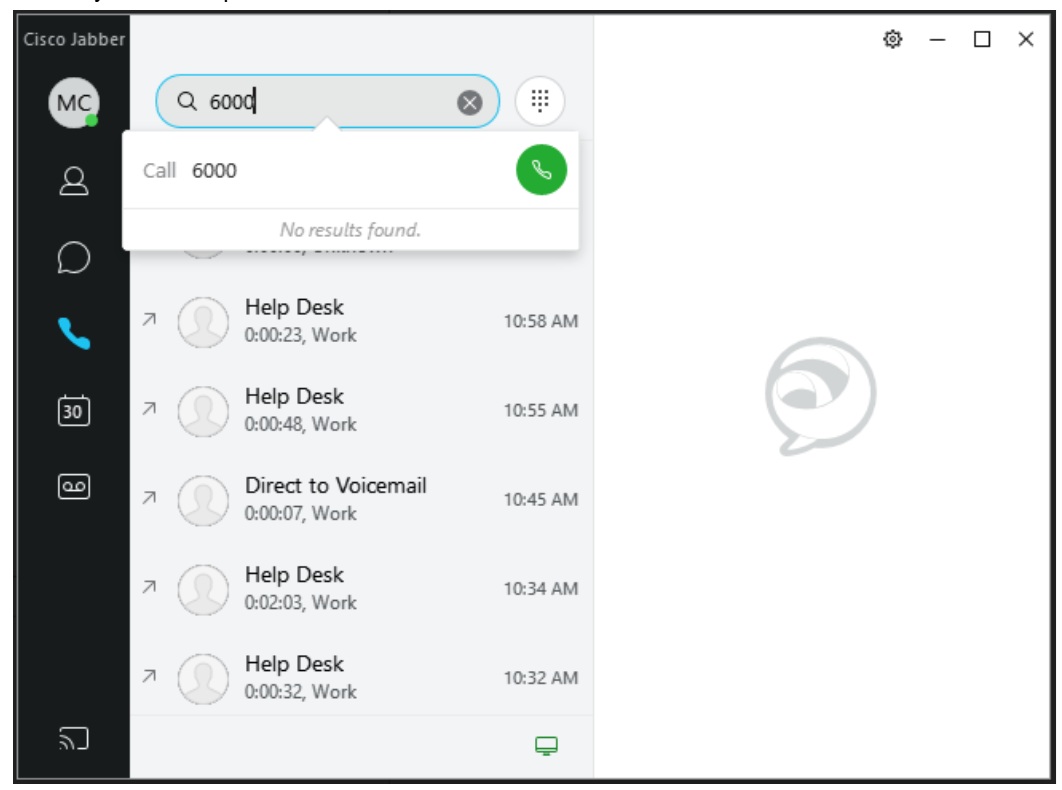
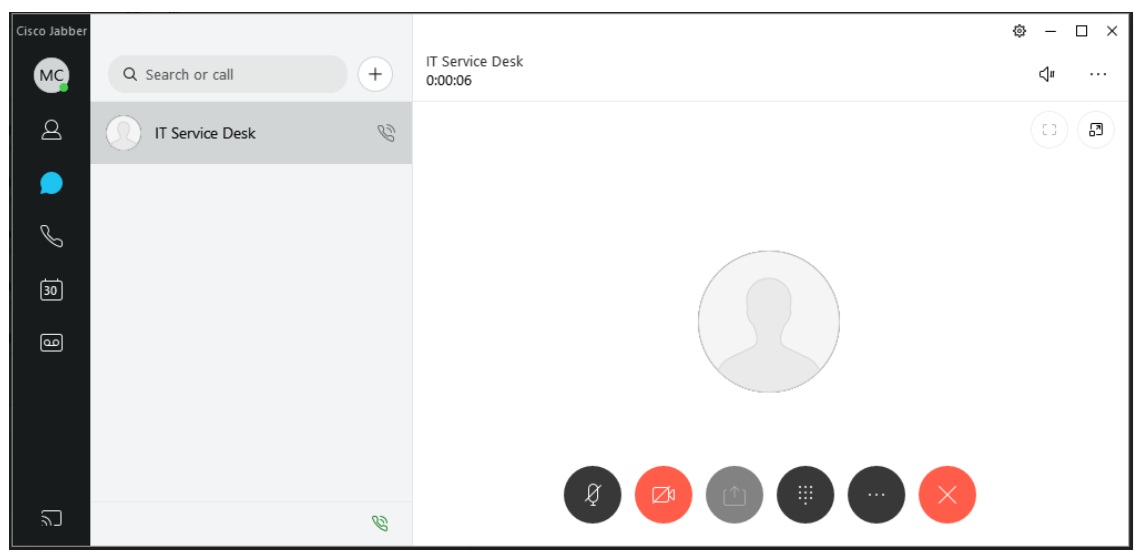
Placing a call is just a simple matter of clicking on the handset icon, typing the number in the Search or Call field and pressing enter or the green call button. Calling is the same as always, 4 digit dialing internally and dial 9 plus the number for external.
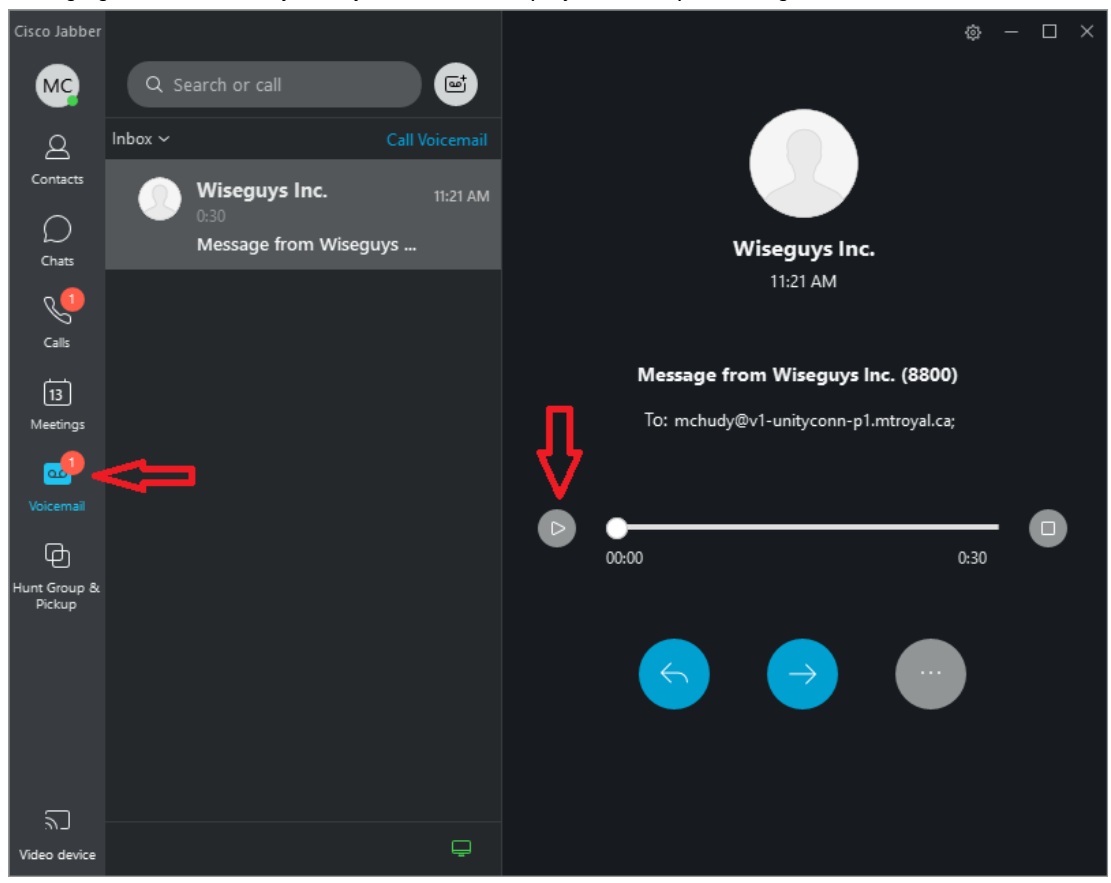
Managing voicemail is very handy too; see them, play them, skip ahead, go back, delete, etc.
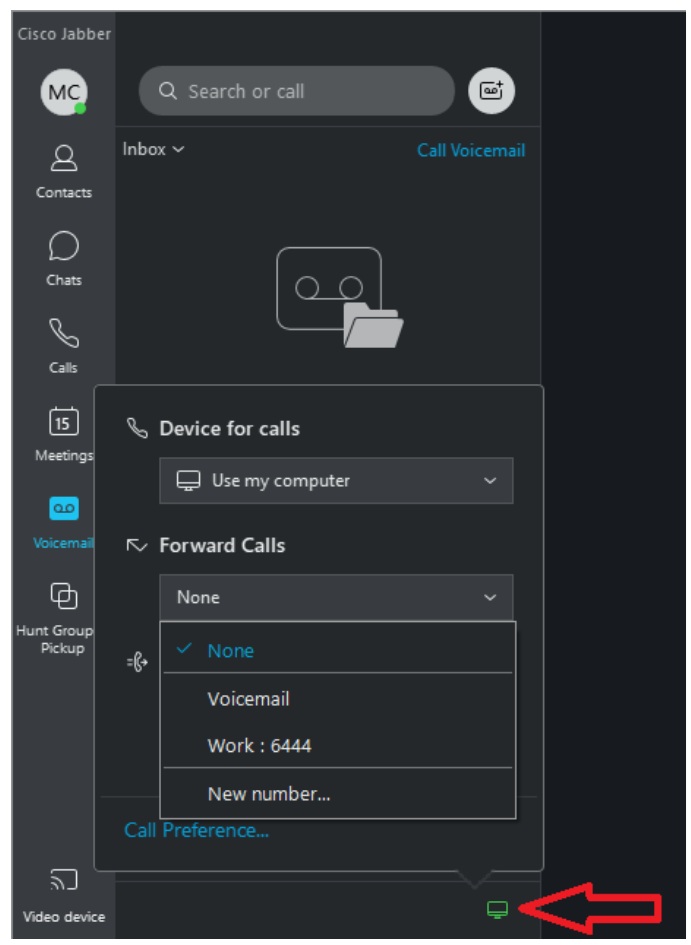
You can manage your call forwarding with the small green icon at the bottom.
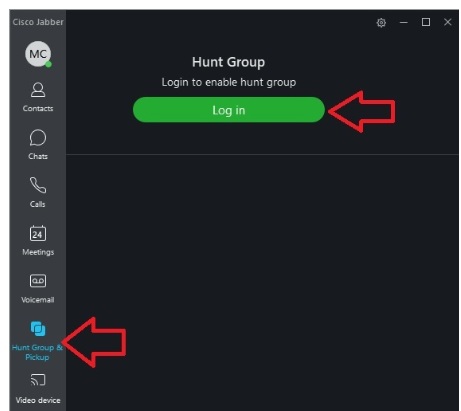
If your role includes taking calls from a queue, you will need to log into the hunt group when you want to take calls and log out when you are not available.
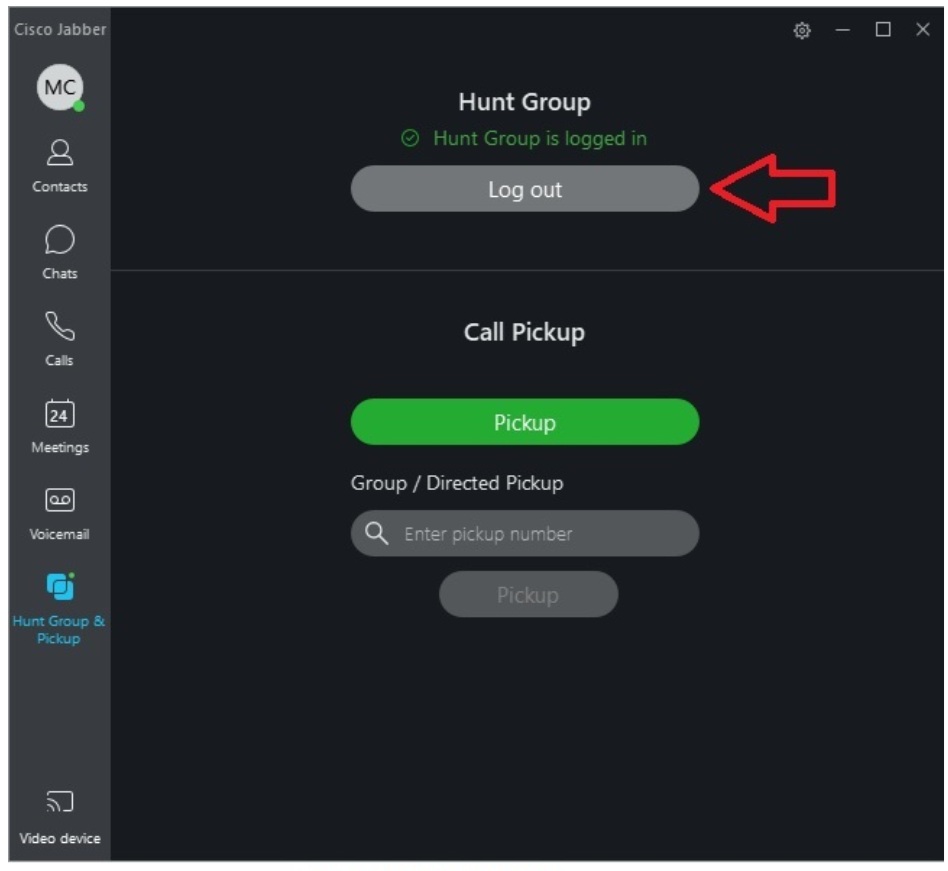
Then you'll see this:

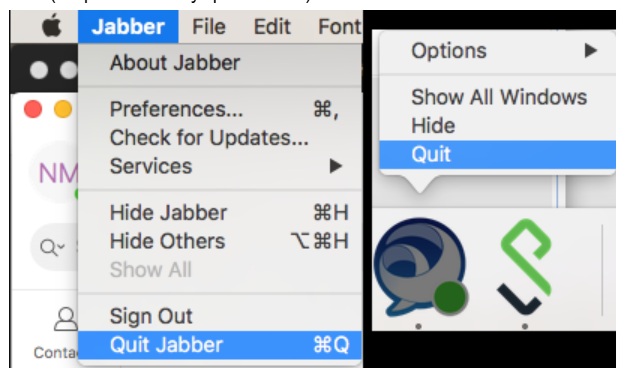
For best results please restart Jabber daily. Some users have reported abnormal behaviour that is instantly fixed by restarting it so it's best to keep it running fresh.
Windows:
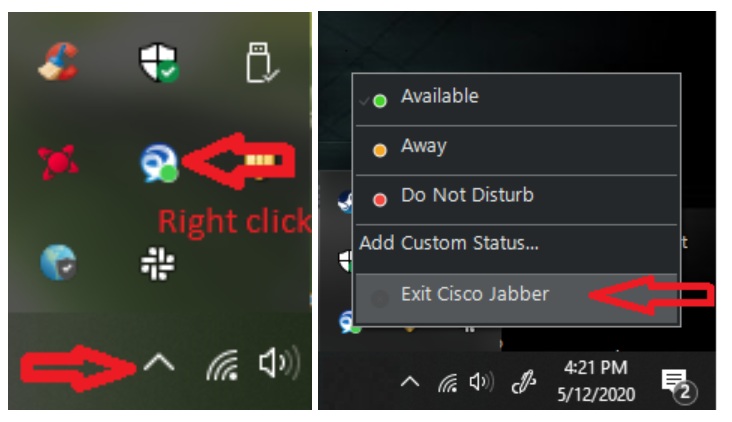
Mac (2 options to fully quit Jabber):
As a courtesy to future occupants of your office and IT staff, please do NOT unplug your desk phone if you are using Jabber on campus. IT staff does not have the resources to move/install/remove phones which is why a significant investment was made to have a desk phone on every desk.
Unused Jabber accounts will be deleted after one year of inactivity, if you require an extension on this for any reason please let the IT Service Desk know, it can easily be accommodated. If your account is deleted and you find that you need it once again please request that it be activated through the IT Service Desk.
You’re encouraged to explore the options throughout the application and test it out with a colleague until you are comfortable with using it like any other phone.